3D view
Walk around the model, read element data, measure, cut sections, filter, and pin comments.
Sheets, Split, 3D

- Sheets: the sheet only.
- Split: the sheet and the model side by side. Not on a phone.
- 3D: the model full size. You can also click the 3D model row in the left panel.
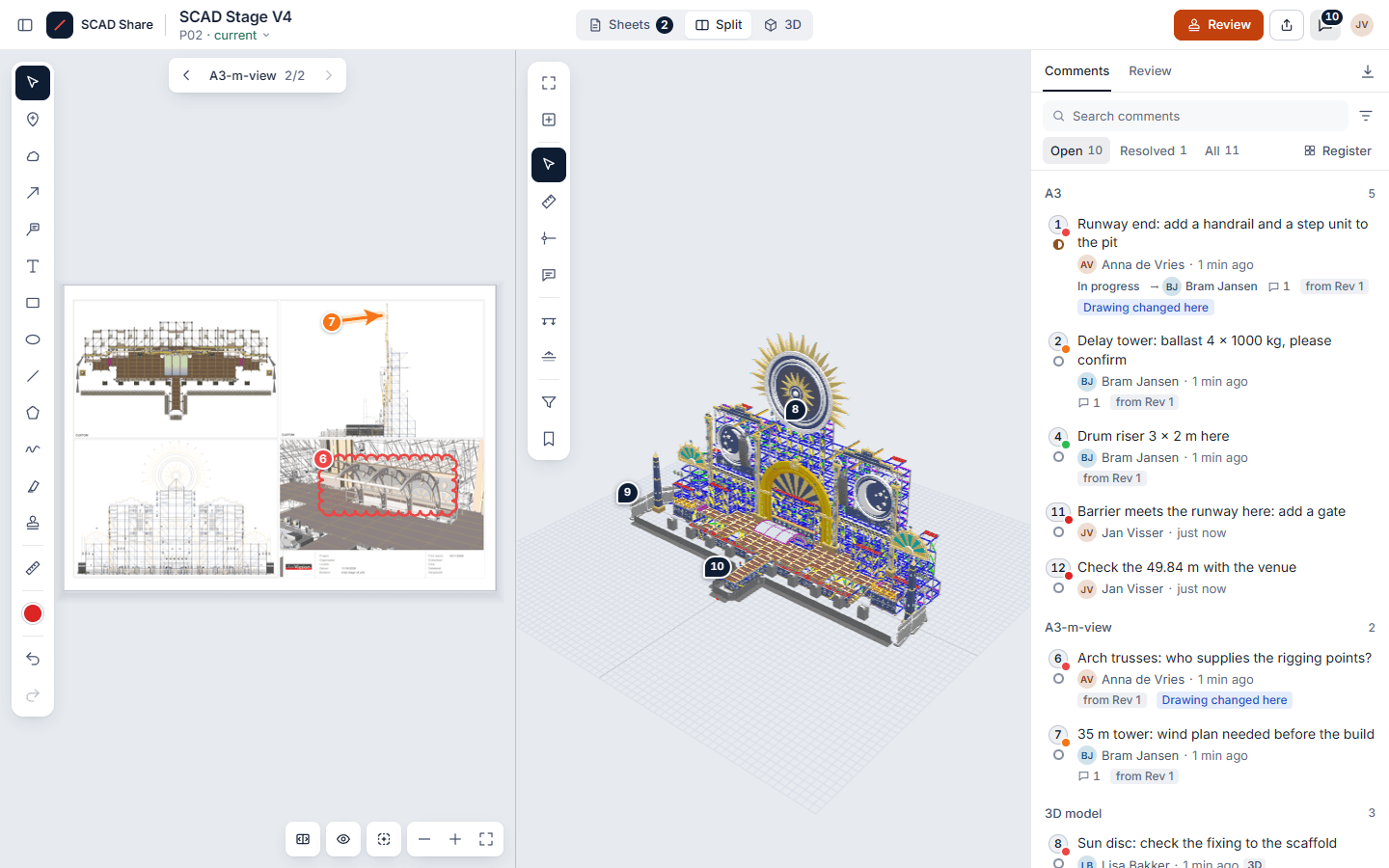
Orbit with the left mouse button, pan with the right button (or two fingers), zoom with the wheel or pinch. The arrow keys orbit, and + − zoom.
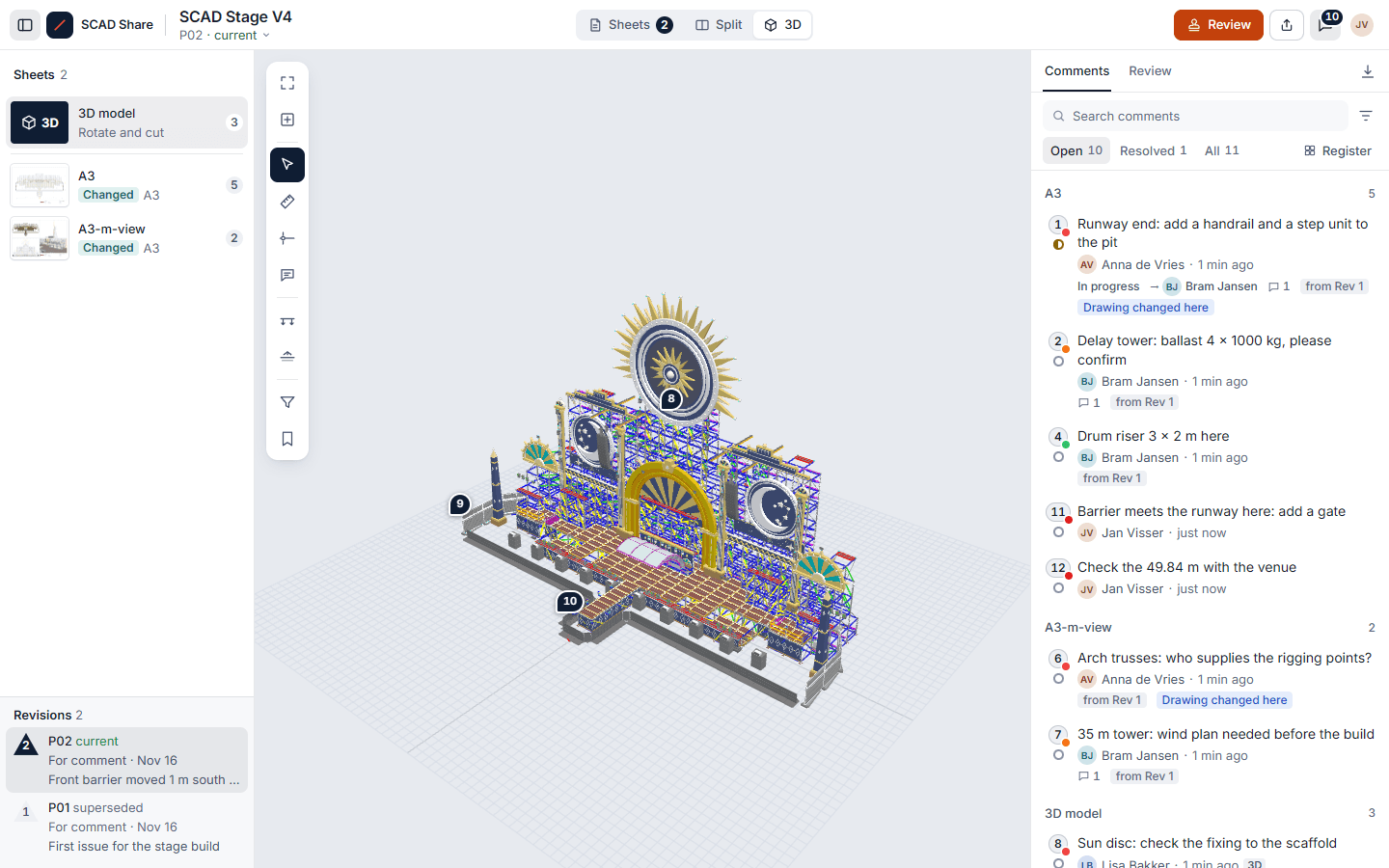
The tool rail

| Button | Key | What it does |
|---|---|---|
| Fit | F | Frames the whole model. |
| Top view | T | Looks straight down. Fit goes back. |
| Select | V | Click an element to see its properties. |
| Measure | M | Distance between two points. |
| Laser | L | Distances from a point along X (east), Y (north) and Z (up). |
| Comment | C or N | Pin a comment on the model. Only shown when you can comment. |
| Section, Z section | Cut the model along a line, or at a height. | |
| Filter | Hide or isolate models, layers, blocks and attributes. | |
| Views | Saved views. |
Esc cancels or deselects. H or Delete hides the selected element. Keys go to the 3D pane when the pointer or focus is there.
3D comments
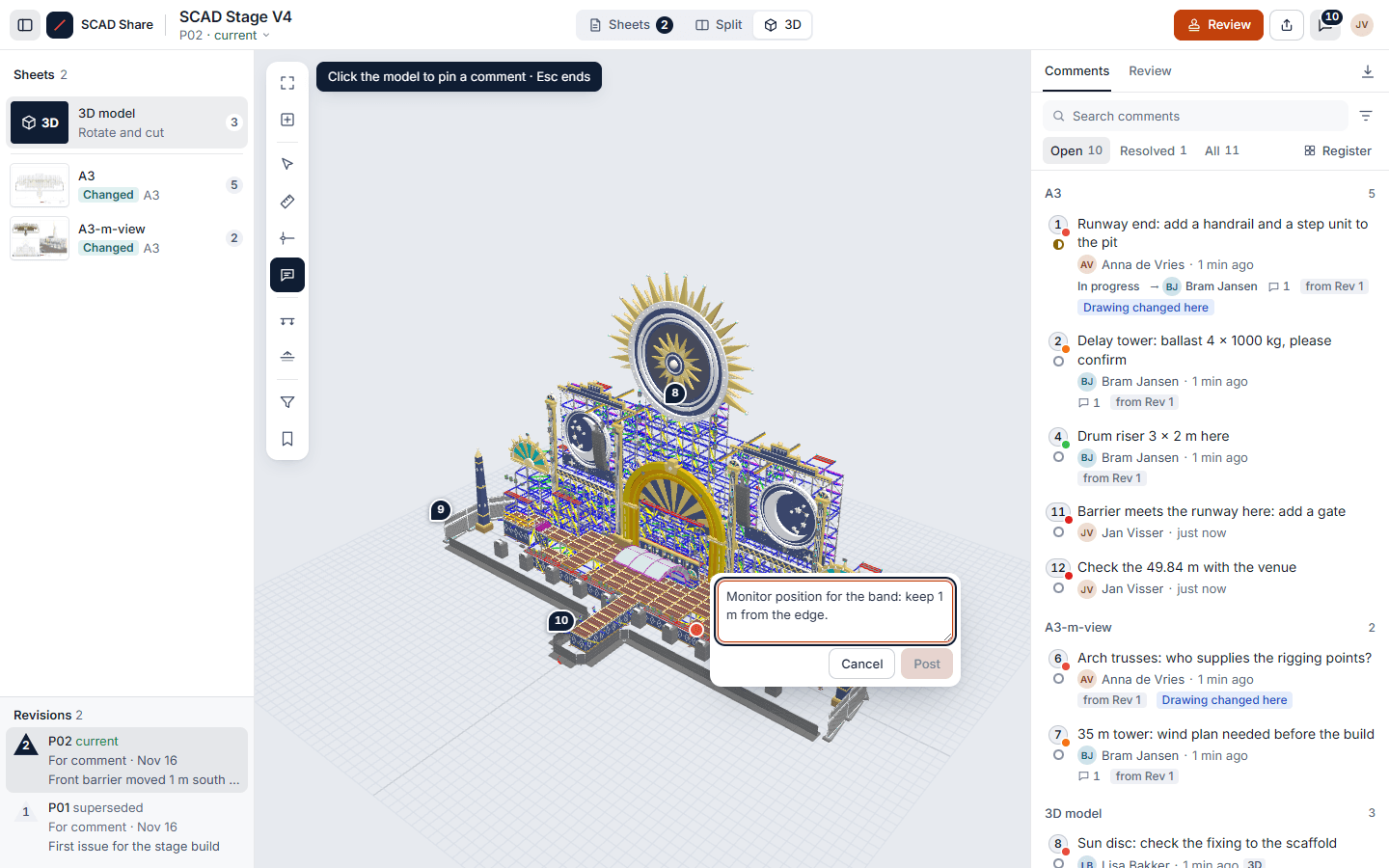
- Choose Comment (C), then click the spot on the model. The first one asks for your name.
- Type the text and choose Post (or press Enter). Esc twice discards.
The pin shows as a numbered marker. The Comments list shows it with a 3D tag. The status, assignee, replies and review work as for sheet comments. A picture of what you saw is attached as a photo. On a phone, Markup arms the 3D comment tool.
Select and properties
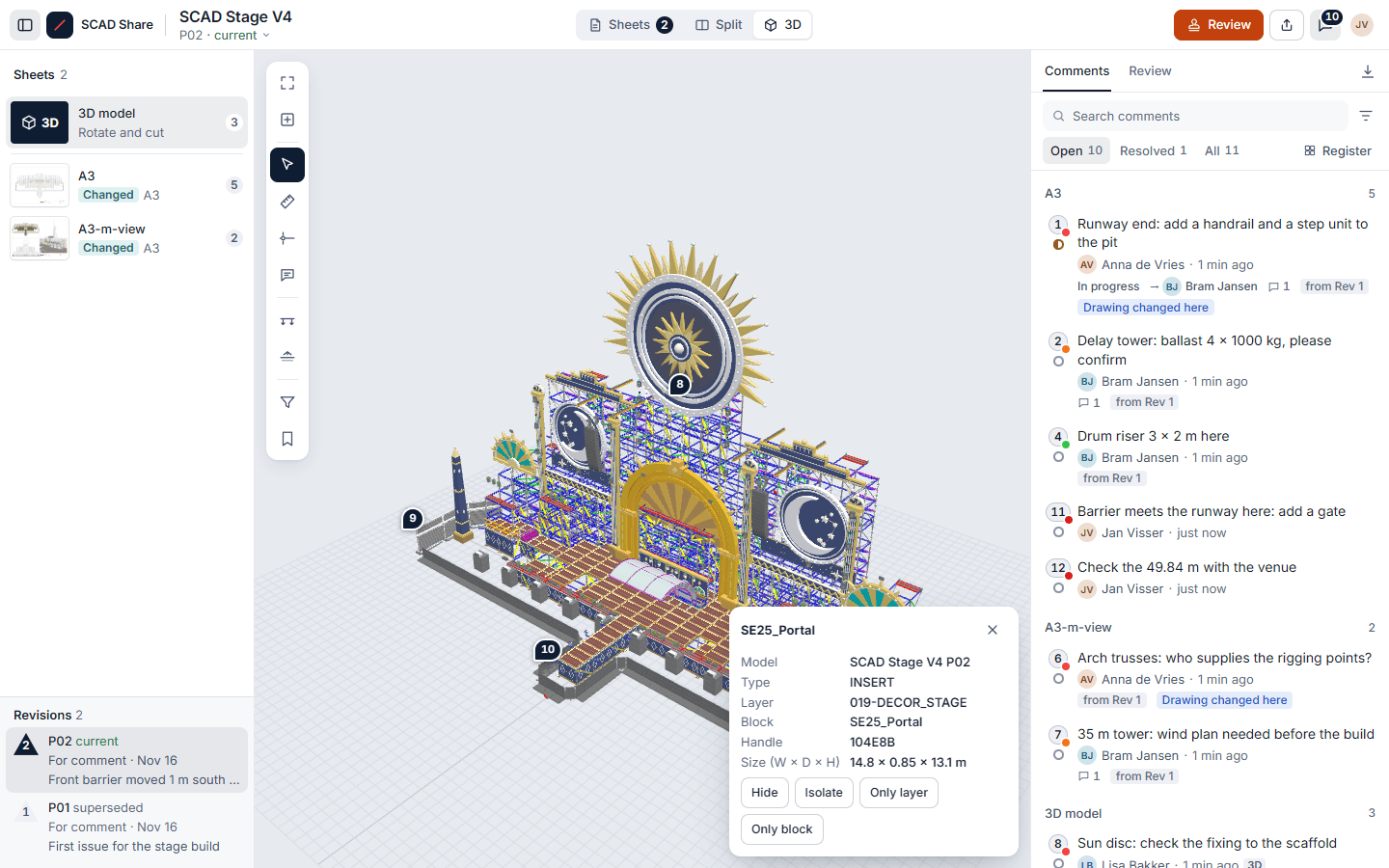
The card shows model, type, layer, block, handle, size (W × D × H), attributes and dynamic properties, as far as the publisher's drawing has them.
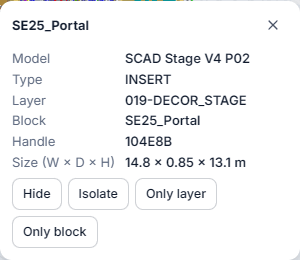
- Hide removes the element from view. Isolate shows only this element.
- Only layer and Only block keep everything on the same layer or of the same block.
- Hidden elements cannot be picked and do not count for Measure and Laser.
Filter
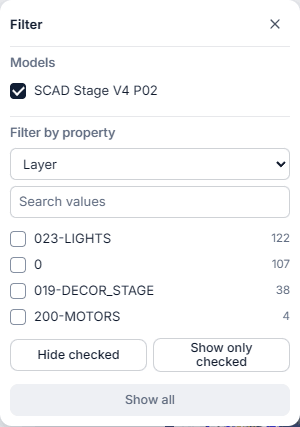
- Models: the drawing and each xref are separate models. Untick one to hide it.
- Filter by property: choose a property, tick values, then Hide checked or Show only checked.
- Active filters show as chips you can remove. Show all clears everything.
Measure and Laser
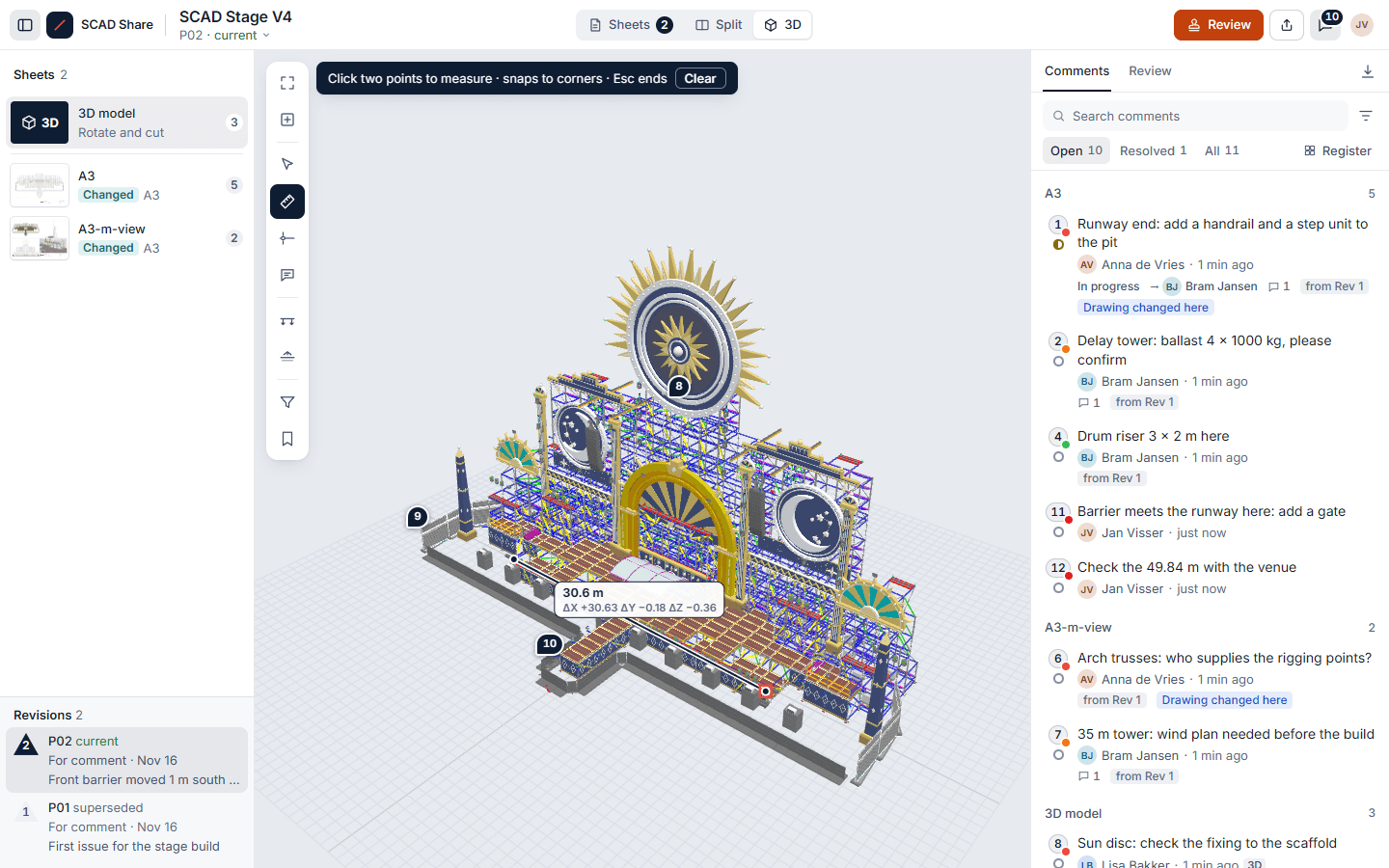
Measure snaps to corners and edges. Clear in the hint bar removes the result.
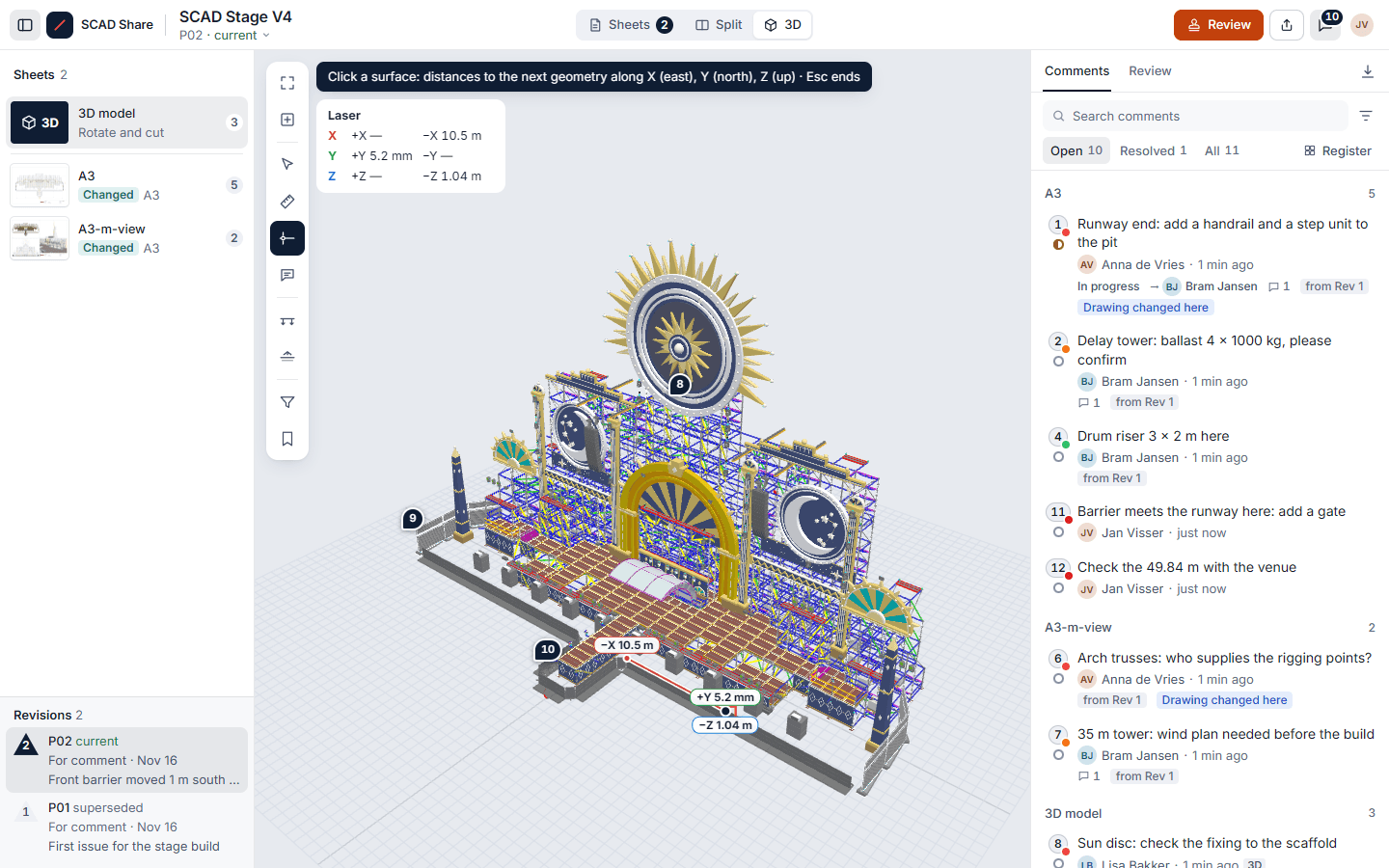
Laser shoots from the clicked point along X, Y and Z, both ways. It reports the distance to the next surface. A dash means nothing is there.
Section and Z section
Section cuts along a vertical line. Drag across the model to draw it. A second pane shows the cut with a scale bar.
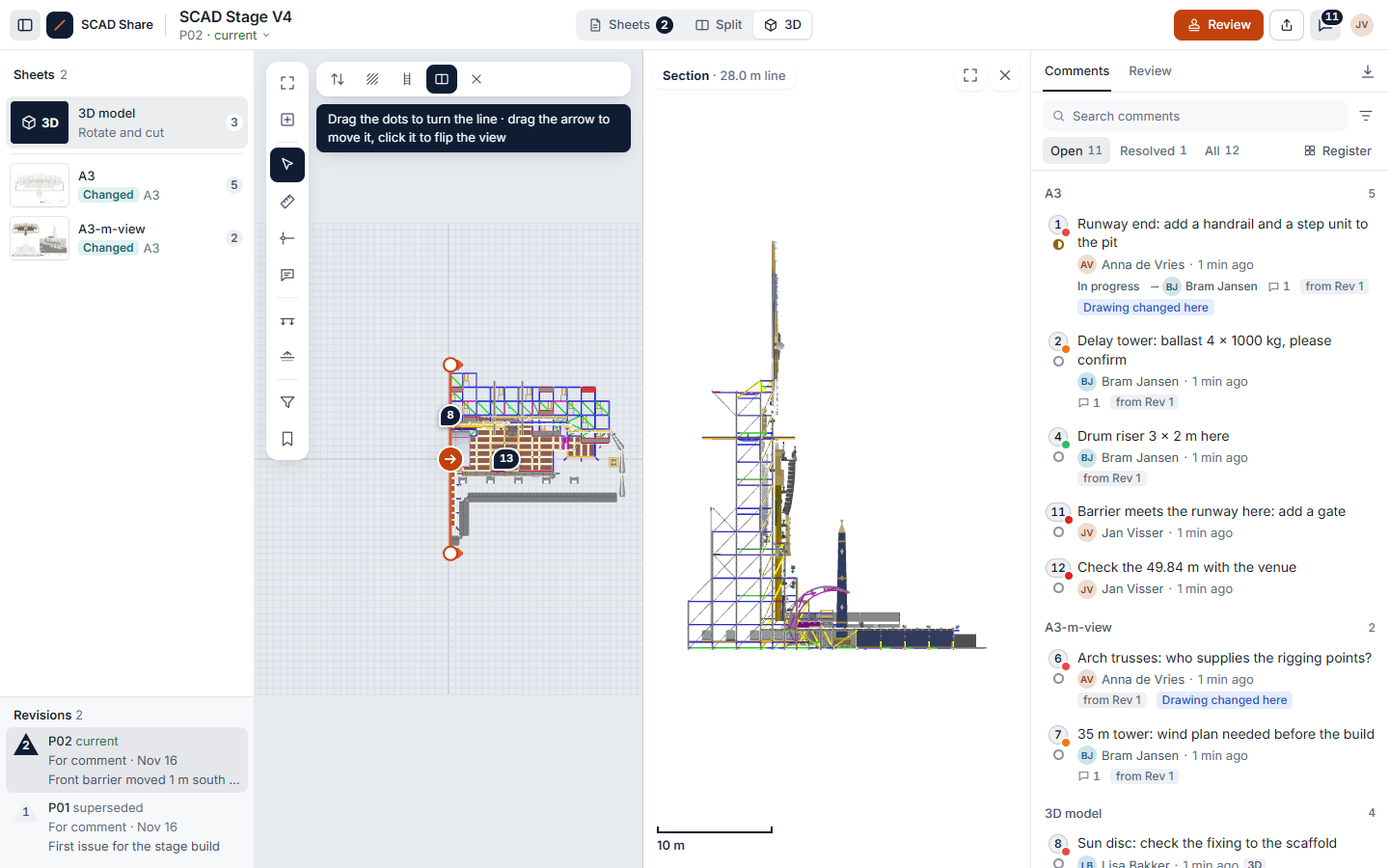

- Drag the two end handles to turn the line. Drag the middle arrow to move it (Shift moves sideways only). Click the arrow to flip the viewing direction.
- Fill cut closes the cut surfaces. Slice shows only a slab of the model behind the line (Width in metres).
- Section view shows or hides the cut pane. Clear section removes the cut.
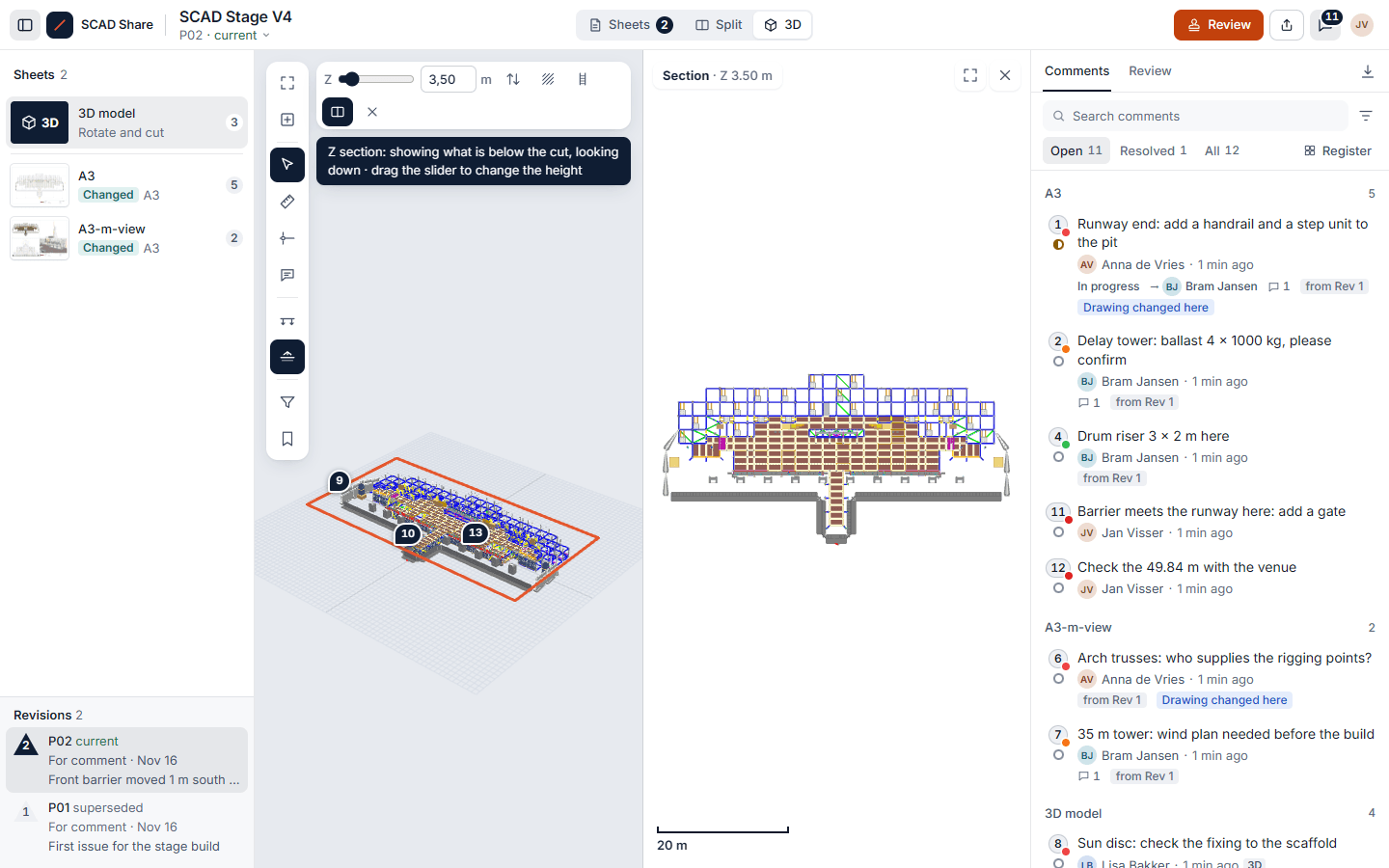
Z section cuts horizontally at a height and looks down on what is below.
Saved views
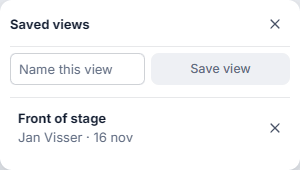
Set up the camera, section and filters. Type a name under Name this view and choose Save view. Saving needs your name. Apply this view brings it all back, including Split or 3D and the sheet next to the model. The author or the owner can delete a view.