Sheets & revisions
Move between sheets and revisions, zoom, and see what changed.
The left panel
Open it with the sheets toggle ([) in the top bar.
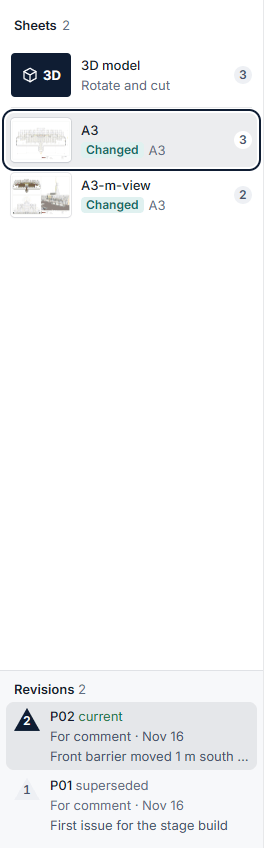
- 3D model row. It comes first when the revision has a model. Click it to switch to the 3D view.
- Sheets. One row per sheet: thumbnail, name, paper size and a badge with the number of open comments. A chip shows Changed, New or Title block (only the title block differs).
- Search and filter. With 7 or more sheets you get Find a sheet and the filter All / Changed / Commented.
- Revisions. One row per revision with its name (a code like P02, or Rev 2), current or superseded, what it was issued for (for example For comment), the date, and the publisher's note. A closed review shows its outcome here. Click a row to open that revision.
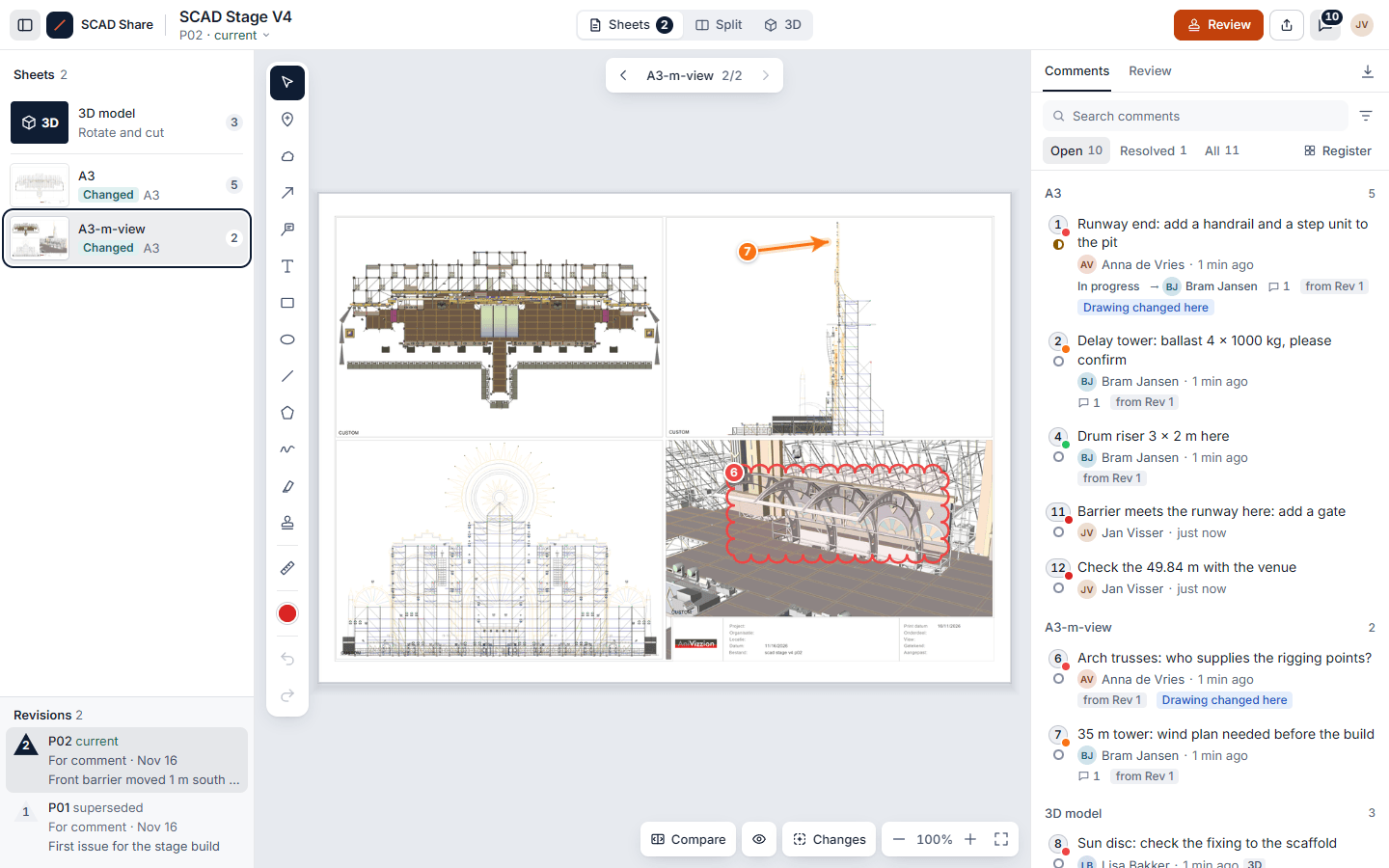
Moving around a sheet
- Sheet bar (top centre): previous sheet, the sheet name with its position (click it for the sheet list), next sheet.
- Bottom right: Compare, Hide markups (the eye), Changes, and the zoom box (Zoom out, Fit or a percentage, Zoom in, Fit sheet to window).
- Drag the sheet to pan (in Select mode). Use the mouse wheel or pinch to zoom.
What changed
The first time you open a new revision, a card shows what is new in it.
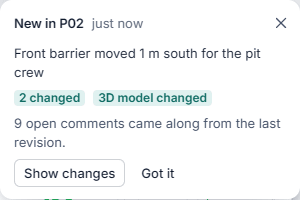
- It shows how many sheets changed, are new or were removed, and says if the 3D model changed.
- It shows the publisher's note and how many open comments came along from the last revision.
- A reviewer sees Start reviewing and the due date of the decision. Show changes turns on the Changes view. Got it closes the card.
Use Changes (D) at any time. See Revisions: compare & carry.
Superseded revisions
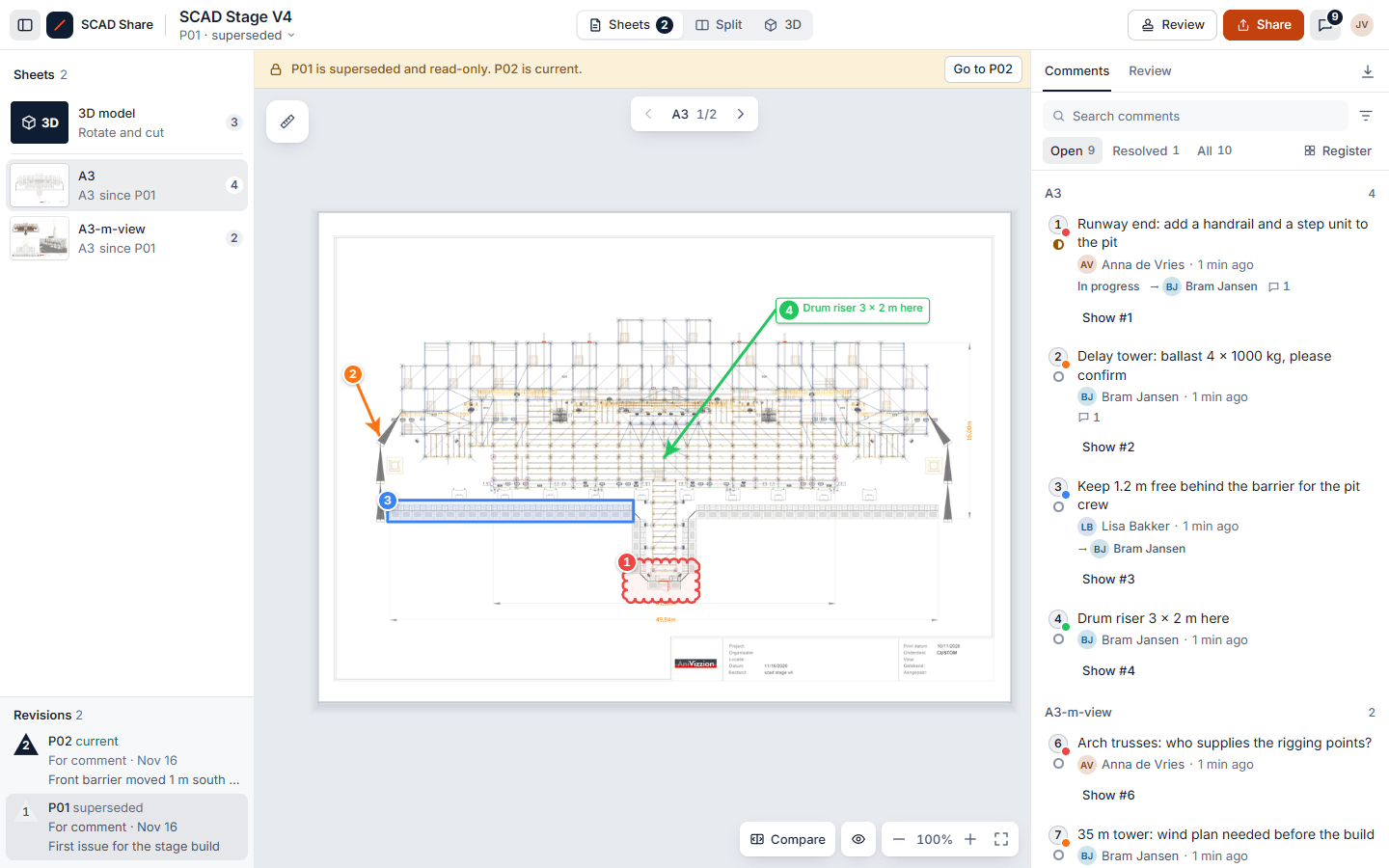

When a newer revision exists, the older one is read-only. The banner says P01 is superseded and read-only. P02 is current. It has a button Go to P02. The owner also sees Carry open comments.
- The tools are off, but you can read every comment and thread.
- If you start to type on an old revision, you get a message: P01 is read-only. Open P02 to comment.
- After the owner hands over the project, every revision reads Handed over on {date}. Everyone can read and export it. Nothing can be changed.
New revisions while you work
While the publisher prepares a revision, the left panel shows New revision on its way with the progress. When it is published you get a message: P03 was published. If you are on the old revision, the message says it is now read-only. A comment you were typing is not lost: check the spot and save it on the new revision. If you made a change in the old revision just as the new one arrived, the app says it was not saved there.
Keyboard
Press ? for this list in the app, or Ctrl K to search sheets, comments and commands. Single-letter keys can be switched off with One-key shortcuts in the name menu.
| Group | Key | Action |
|---|---|---|
| General | Ctrl K | Command palette |
| ? | Shortcut list | |
| [ | Sheets panel | |
| ] | Review and comments panel | |
| / | Search comments | |
| Esc | Stop the tool, close, or deselect | |
| Navigate | ← → or PgUp PgDn | Previous / next sheet |
| Home End | First / last sheet | |
| J K | Next / previous comment | |
| + − | Zoom in / out | |
| 0 | Fit the sheet to the window | |
| Review | Shift R | Resolve or reopen the selected comment |
| D | Show what changed | |
| Shift C | Compare revisions | |
| Shift H | Hide or show markups | |
| I | Issue register | |
| Ctrl D | Duplicate the selected markup |
Tool keys are on the Markup tools page. Keys do not fire while you type in a field. In a split view, they go to the sheet unless the pointer is in the 3D pane.