Revisions: compare & carry
See what changed between revisions, and bring the comments that are still open to the new one.
Changes
Click Changes (D) at the bottom right of a sheet. Dashed areas mark what changed since an earlier revision. The change bar says {n} changed areas on this sheet, This sheet is new in this revision. or No changes on this sheet.
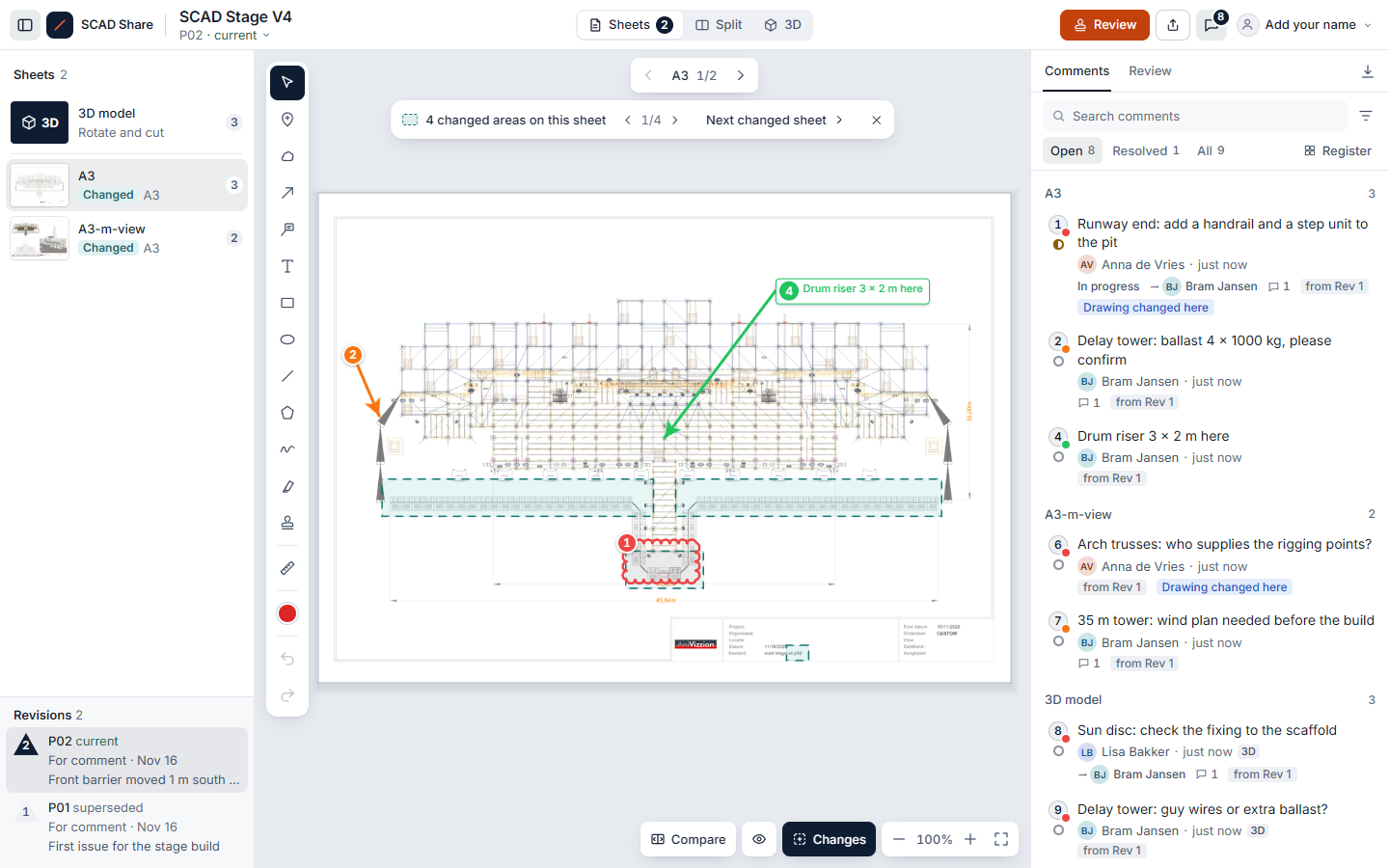
- The since list sets the revision to compare with.
- Use the arrows for the previous or next changed area, Next changed sheet to jump, and Hide changes to close.
- If a sheet cannot be compared by area, the bar says Use Compare.
- A carried comment shows Drawing changed here when the drawing under it changed. The comment may be dealt with. Use the filter Only where the drawing changed.
Compare two revisions
With two or more revisions, Compare (Shift C) appears at the bottom right. It lays another revision of the same sheet over the one you see. Compare with starts on the previous revision.
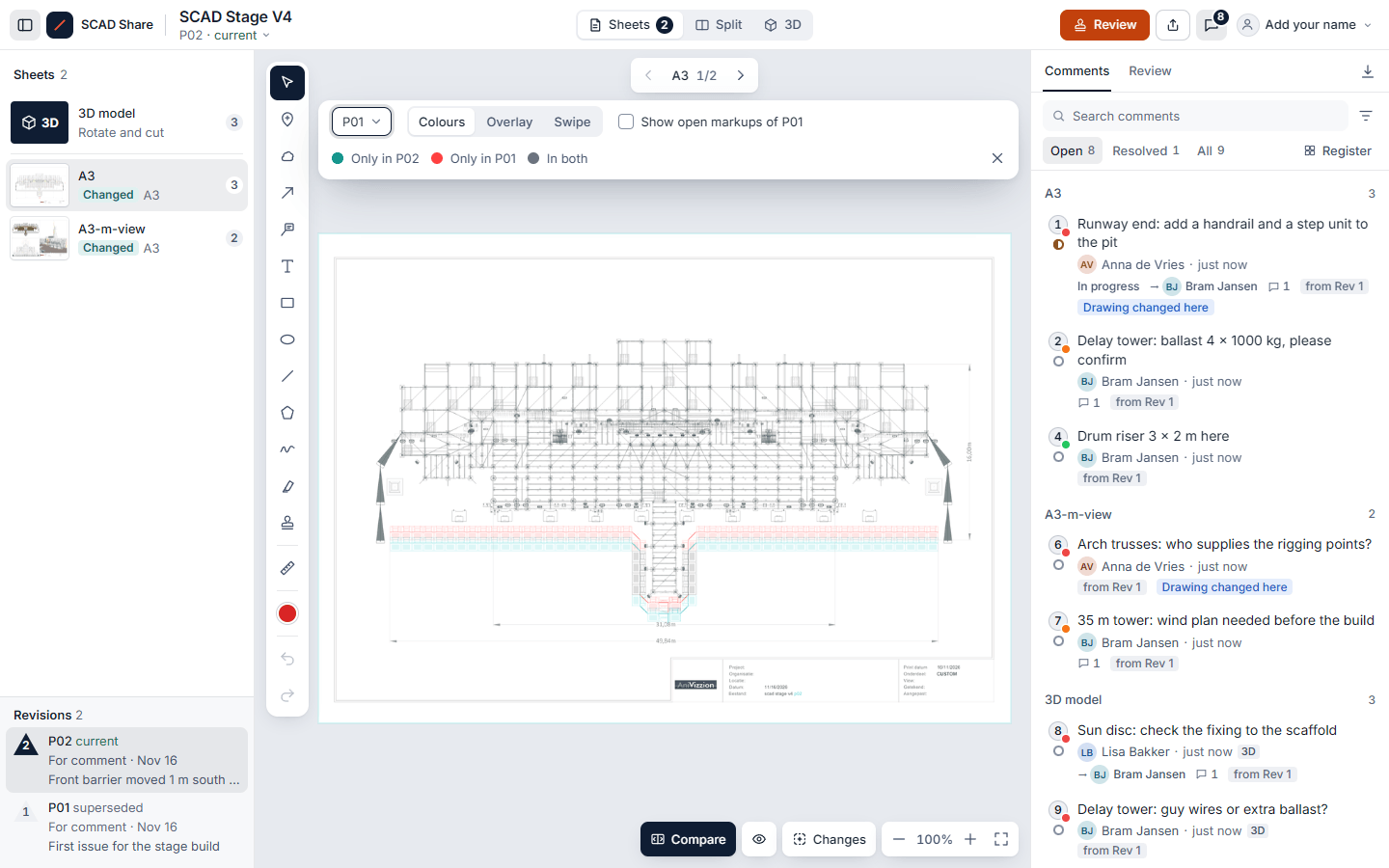
| View | How it looks |
|---|---|
| Colours (default) | Each revision has its own colour. The legend shows Only in P02, Only in P01 and In both. |
| Overlay | The other revision is drawn on top. A slider sets the strength. |
| Swipe | A divider splits the screen. Drag it, or use the arrow keys. |
- Show open markups of {rev} adds the open comments of the other revision as faint, read-only shapes. Click one to read it.
- If the other revision has no such sheet, or the sheet has another size, Compare says so. The two would not line up.
- Comparing only shows. It never changes anything. Stop comparing closes it.
Carry open comments
A new revision starts with the comments of its own. Open comments on the older revision can come along.
- Automatic. The publisher can choose this when publishing. The New in P02 card then says how many came along and how many stayed behind because their sheet changed. The Comments list shows each with a chip such as from Rev 1 (with #n when the number changed).
- One comment. Open the older revision. Choose Carry to current revision on a comment (or Carry to Rev 2 on a faint markup in Compare, or Carry n here in the register). A copy appears on the current revision as a new open comment. You become its author. The assignee, replies and photos stay on the old revision. It keeps its number when that number is free. Afterwards the button reads Show #n.
- Many comments (owner). Use Carry open comments in the superseded banner, Bring here or Carry them here in the Comments list. These keep author, status, assignee, due date, replies and photos. The toast says how many were carried and skipped.
A comment cannot be carried when its sheet is not in the new revision, when the sheet changed size, or when it was carried before and then removed. A 3D comment needs a 3D view in the new revision. Stamps are never carried.