Markup tools
Mark the spot on a sheet and say what should change. Everything is saved as you go.
The tool rail sits at the top left of the sheet. You need to be on the current revision, and the first tool you pick asks for your name. On a phone, tap Markup in the bottom bar. See Phone & tablet.

Tools
| Tool | Key | How |
|---|---|---|
| Select | V | Click a markup to open it. Drag the sheet to pan. |
| Comment | N | Click the spot, then type your comment. |
| Cloud | C | Click two corners around what should change, then type. |
| Arrow | A | Click the start, then the tip. |
| Callout | X | Click what you mean, then where the text goes. |
| Text | T | Click the sheet, then type. |
| Rectangle | R | Click two opposite corners. |
| Ellipse | E | Click two opposite corners. |
| Line | L | Click the start and the end. |
| Polygon | P | Click each corner. Click the first point or press Enter to finish. |
| Freehand | F | Drag to draw. |
| Highlighter | H | Drag over what you want to point out. |
| Stamp | S | Pick a stamp, then click the sheet. |
| Measure | M | See Measuring on a sheet. |
A hint at the bottom of the sheet says what the next click does. Press Esc to stop. After one markup the tool returns to Select. To keep a tool on, double-click it or press its key twice. It stays on until you press Esc.
The rail also holds Colour and line, Undo (Ctrl Z) and Redo (Ctrl Shift Z or Ctrl Y). Undo also reverses replies and status changes.
Add a comment to a markup
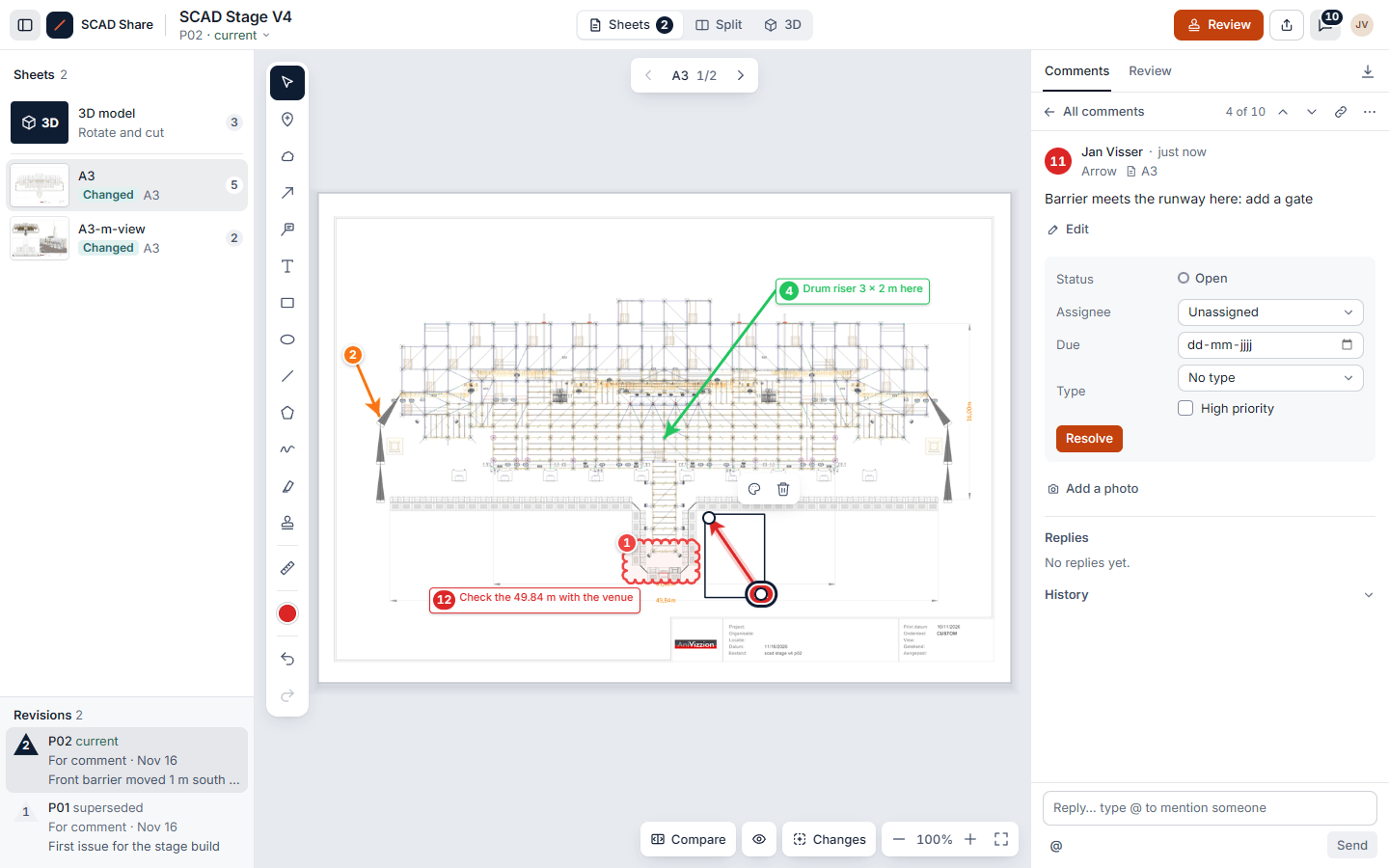
After you draw, a box opens next to the markup.
- Type the comment (What should change?). Enter saves. Shift Enter adds a new line.
- Choose Save or Cancel. To discard what you typed, press Esc or Cancel twice.
- Assign, type, date, photo opens extra fields: Assignee, Type (Action, Question, For information), a due date and a photo.
- The toast Comment added has an Add a photo action.
Style
Open Colour and line beside the rail. Only the groups that fit the tool or selection show.
- Colour: Red, Orange, Yellow, Green, Teal, Blue, Purple or Ink.
- Line: Thin, Normal, Bold or Heavy.
- Text size (text and callout): S, M, L or XL.
- Edge (rectangle and polygon): Straight or Cloud.
- Fill (closed shapes): None, Light or Half.
With a markup selected, a change applies to it. Otherwise it sets the style for the next markup. The app remembers your choices in this browser. You cannot restyle someone else's markup.
Stamps
Click Stamp (S) and pick one: Approved, Not approved, Hold, Verify on site, For information or As built.
- Approved and Not approved are only for the owner, reviewers and invited people. Others see: use the Review tab to give your opinion.
- A stamp is a mark, not an issue. It is not counted as open and it has no status.
- Stamps are never carried to a new revision.
Select, move, delete

- The strip on a selected markup has Colour and line and Delete (Del). A text markup also has Edit text. Number, author, assignee and status are in the Comments panel.
- Drag the round move handle (Drag to move) to move a markup. Drag the end handles of a line or arrow, or the corner grips of a shape, to reshape.
- Ctrl C, Ctrl V and Ctrl D copy, paste and duplicate.
- Press Esc to deselect.
Right-click menus
- Empty sheet: Add comment here, Add markup (place a text or stamp, or choose a drawing tool), Paste here, Undo, Measure, Hide markups, Show what changed, Compare revisions, Fit sheet to window, Copy link to this sheet.
- A markup or a comment in the list: Open comment, Reply, Edit comment, Add a photo, status and assignee choices, Copy link to this comment, Copy comment text, Copy markup, Duplicate, Delete comment.
Hide markups
Click the eye at the bottom right (Shift H) to read the drawing without markups. Click again to show them. The sheet follows your comment filters: it draws only the markups the list keeps.
Measuring on a sheet
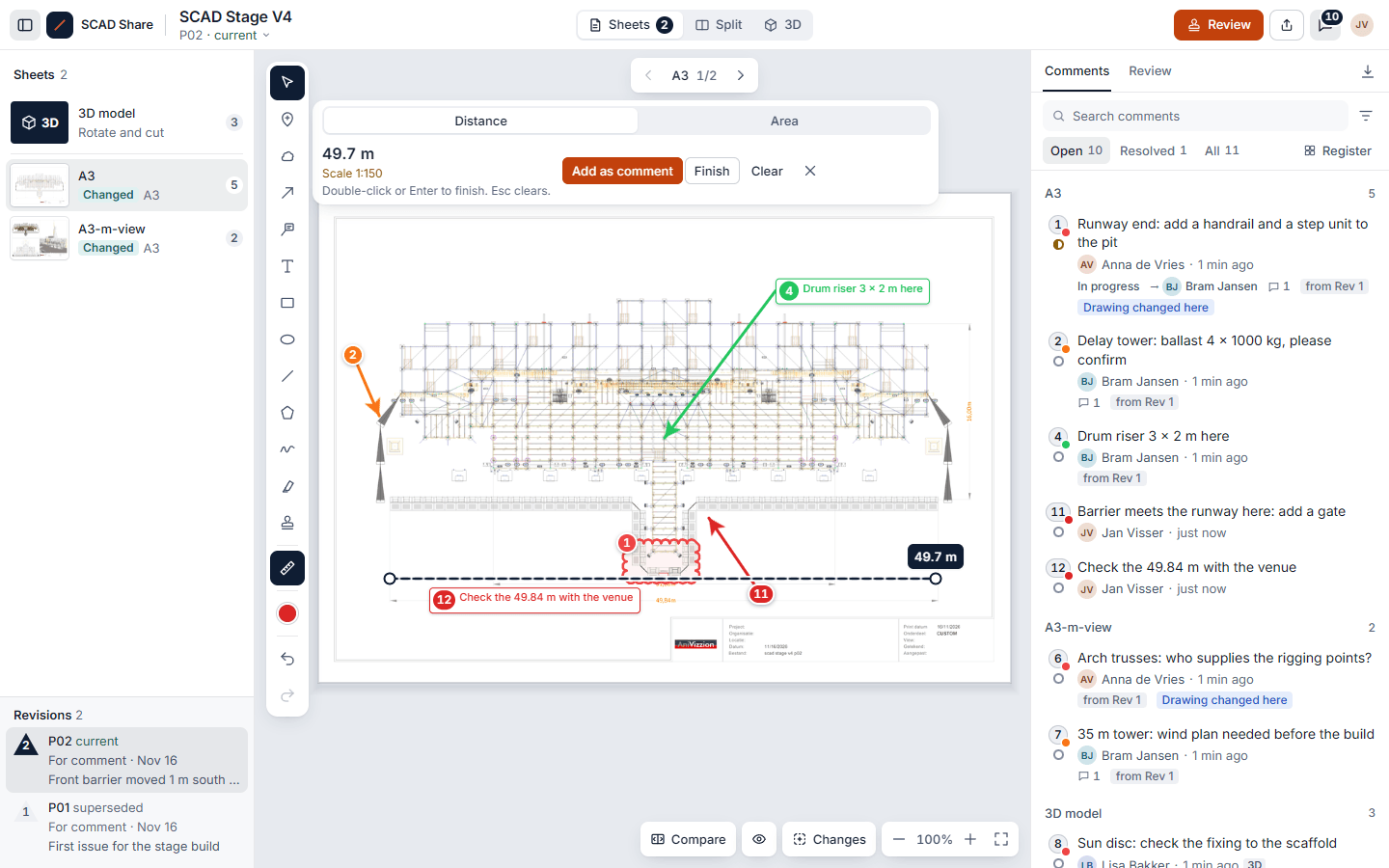
- Press M or click Measure. Choose Distance or Area.
- Click the points. Double-click or press Enter to finish. Clear or Esc removes the result. Close measure ends the tool.
- Add as comment turns the result into a comment.
- Set scale shows only on a sheet without a known scale. It asks for a real length in metres. The scale is kept in this browser only. Without a paper size, results are in image pixels.
- With the keyboard: arrow keys move a crosshair and Enter places a point. This works for the other tools too.